Getting started
Overview & core flows
Taskflow trades feature sprawl for one clear loop: plan today, ship it, reflect. Here's the full surface area in one page.
What it is
Taskflow is a real-time task manager for teams of two to five people. There's no password screen, no onboarding wizard, no feature list of due dates and sub-tasks and labels and Gantt charts. You enter an email, click a link, and you're in your workspace. Changes appear for everyone else as you type.
The design is deliberately minimal: three task states, two flags, one notes field per project. The interesting surface is elsewhere — the realtime plumbing, the gamification that nudges daily use, and Copilot that knows your workspace.
Core concepts
- Workspace
- A shared container. Holds members, projects, tasks, feed, standups. One UUID.
- Member
- A person with an email, a name, and an avatar color. Belongs to exactly one workspace row.
- Project
- A named bucket of work with an emoji. Tasks live inside projects. One auto-saving notes field each.
- Task
- Has a
status(today / backlog / done) and two flags:is_important,is_blocked. - Feed
- Workspace-level activity stream: posts, completed tasks, standup summaries.
- Standup
- Daily yesterday / today / blockers upsert, optionally posted to the feed.
Getting started
- 1
Open /start and enter your email
Supabase sends a one-time magic link. There is no password field anywhere in the app — the link itself is the credential. - 2
Create or pick a workspace
If your email has never been seen, you'll be prompted to name a workspace. If you've been invited to one or more, you'll see a picker. Either way, your identity is cached inlocalStorageso future visits skip the email step entirely. - 3
Share the URL with your team
From the Settings page, add teammate emails. They follow the same flow — magic link, pick the workspace, done. There is no separate invitation email; the workspace simply appears in their picker when they authenticate.
Task lifecycle
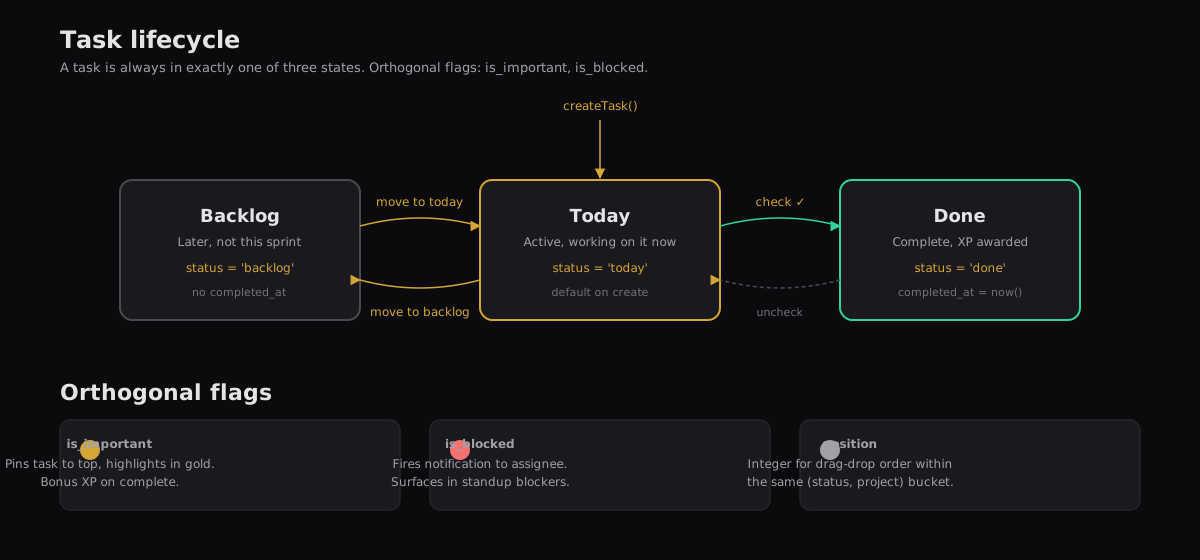
Every task has exactly one status. The check-box moves it to Done; a drag or a context menu moves it to Backlog. Two orthogonal flags ride along — importance (pins to top, bonus XP on completion) and blocked (fires a notification to the assignee, surfaces in standup blockers).
The five views
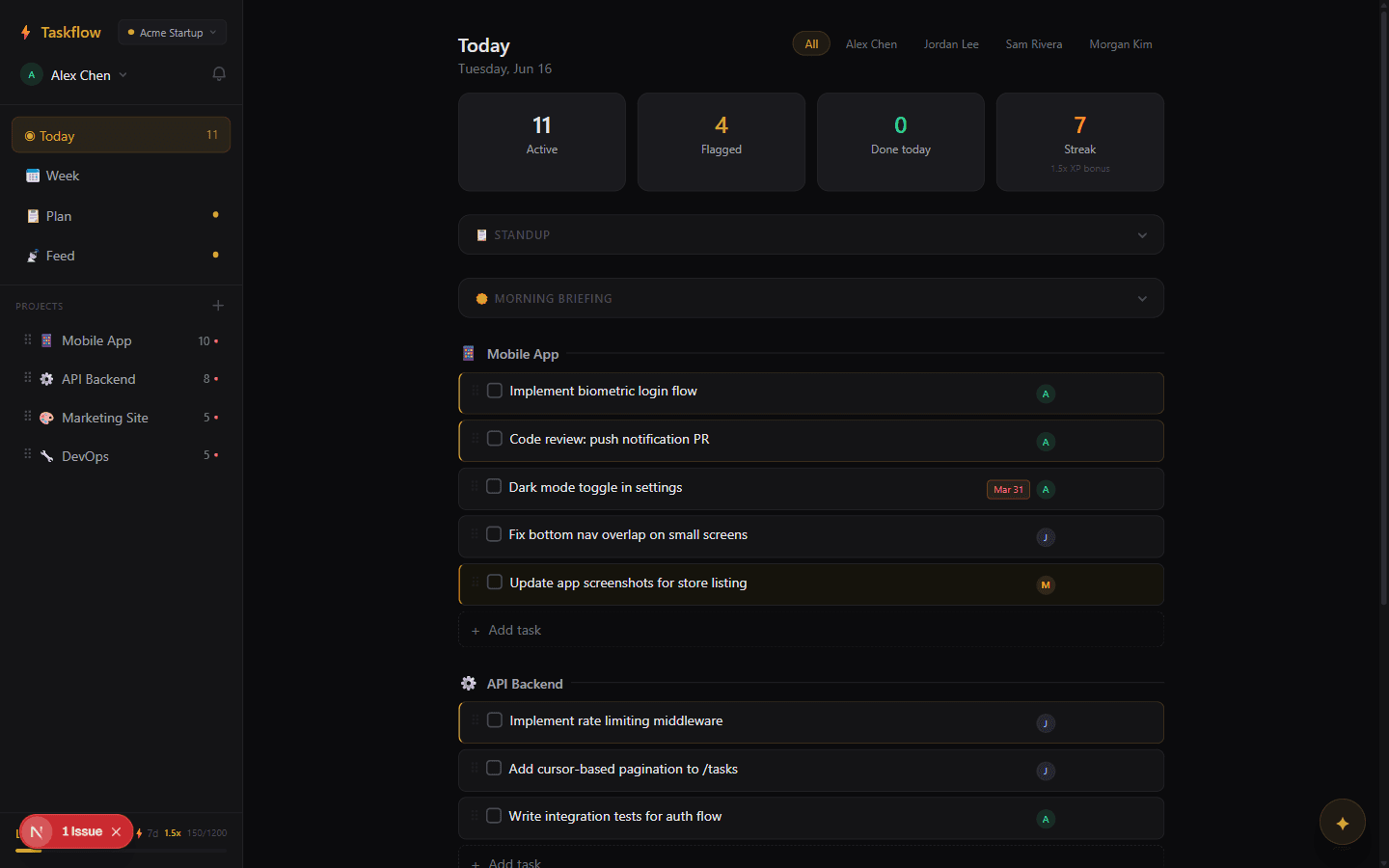
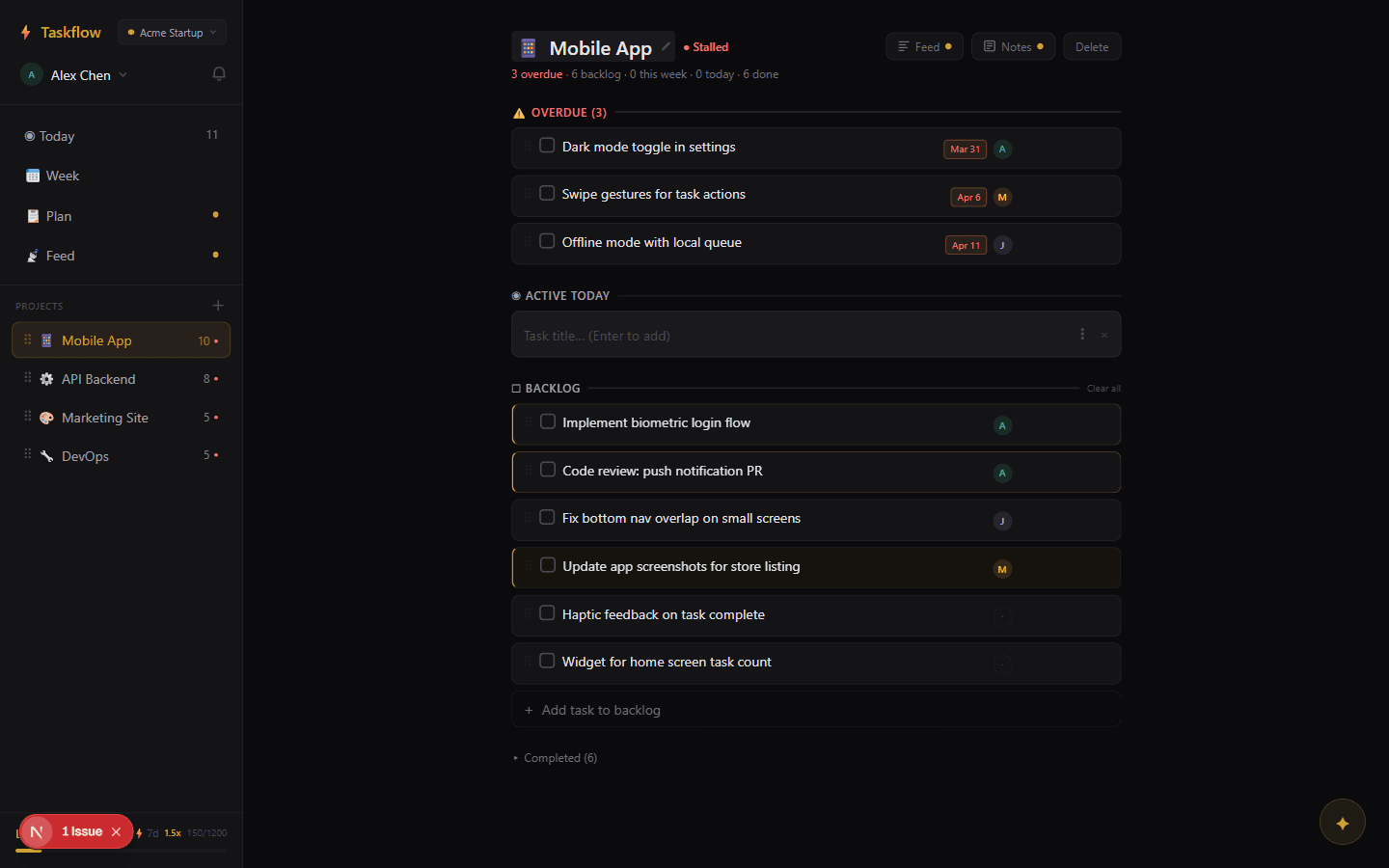
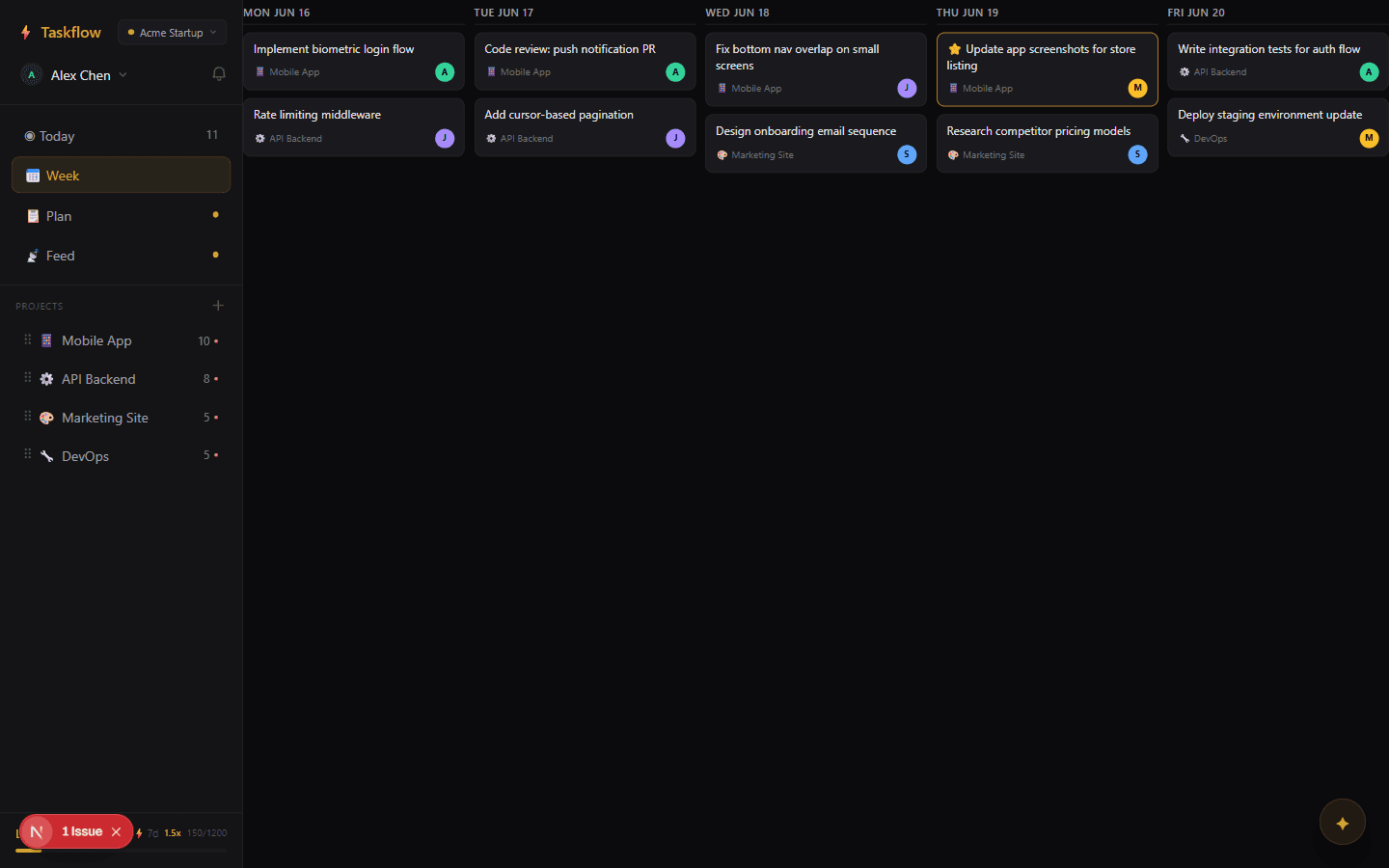
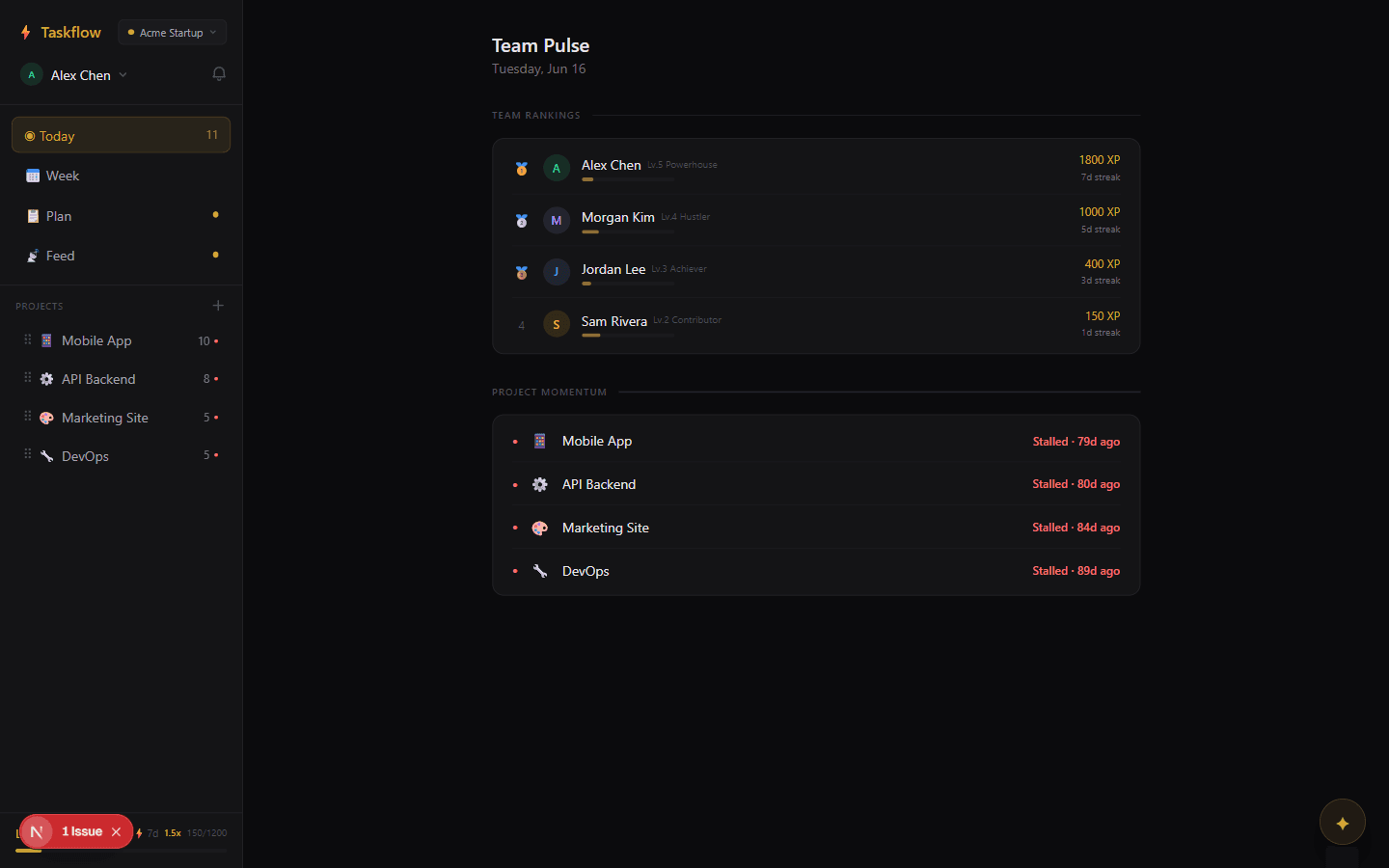
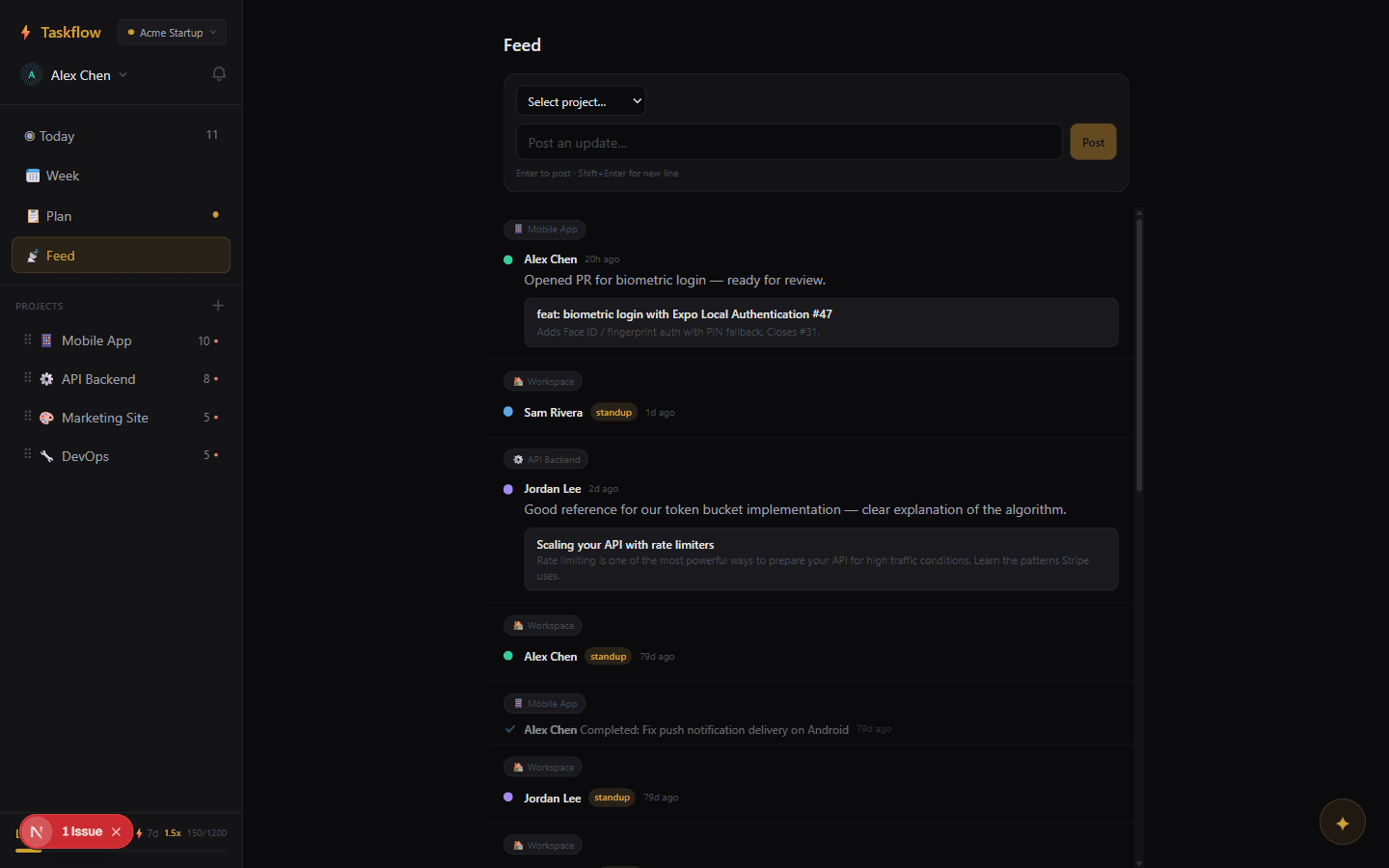
One sidebar, five destinations. Each is a different lens on the same data — they never hold any state the database doesn't.
Project notes
Each project has one free-form markdown field. Edits debounce for about 500 ms then write content and updated_at. Remote edits merge via last-write-wins — if two people type simultaneously, whoever saves last wins the race, but you'll see each other's keystrokes within a few hundred milliseconds via the realtime channel.
Keep going
Now that you've seen the shape of the app, the next page explains how the sync actually works.
Architecture & real-time →